Thursday, 13 December 2012


Monday, 3 December 2012
WEEK 07
MICROSOFT POWER POINT
On this week we started studying about Microsoft Excel. We studied about how to select, insert and delete cells. And also about modifying columns, rows and cell like height, width. We studied about how to create simple formulas too. On the second session we studied about Spark lines and the uses of it. There are 3 types of Sparkling Most important chapter on this session was pivot table. It makes data in worksheets much more manageable by summarizing the data and allowing user to manipulate it in different ways. On the third session we studied how to add and delete comments. On the third session we did lot of class based activities to increase our MS Excel knowledge.
Sunday, 2 December 2012
WEEK 06
MICROSOFT WORD 2010
Then there was an activity based on what we study, we were asked to design a poster which had the same shape even color as one is shown on slide. As all of us were able to do that the lesson on MS Word was a successful mission.
In this Week, We learned about MS Word, how to use this program and so on. In fact, i have already known about how to process this program. So when he taught me more, it made me understand clearer. And then we moved on to advanced features in Microsoft Word as well as modifying page layout and working with headers and footers, checking spelling and grammar, using indents, tabs, line and paragraphs spacing, working with lists, breaks, columns, tables and hyperlinks, working with shapes, text boxes, word art, clip art, picture and smart art, working with styles and themes and template, reviewing documents and using mail merge.
Monday, 12 November 2012
WEEK 05
MS WINDOWS 7 (OPERATING SYSTEM)
About Microsoft
 |
| Bill Gates |
Founded in April 4, 1975 by Bill Gates and Paul Allen, today Microsoft is one of the largest and most successful companies in the world. Microsoft is the developer and distributor of such software as Windows 95, Microsoft Office, DirectX, and numerous other programs and games.
 |
| Paul Allen |
Address:
Microsoft Corporation
One Microsoft Way
Redmond, WA 98052-6399
USA
One Microsoft Way
Redmond, WA 98052-6399
USA
Anatomy of Windows 7
- Aero
- Task-bar
- Search
- Libraries
- Gadgets

Aero View
The Aero desktop experience, available in the Home Premium, Professional, Ultimate, and Enterprise editions of Windows 7, mixes cool graphics with useful new ways to manage your desktop.
 Aero visual hallmarks include subtle animations and translucent glass windows, which you can personalize. Pick from the included color palette, or create your own custom tints with the color mixer.
There's more to Aero than style. Point to a task bar button, and you’ll see a thumbnail-sized preview—even for live video. Then point to the thumbnail, and it morphs into a full-screen preview. Shake and Peek cut through desktop clutter by quickly minimizing open windows or turning them invisible.
- Aero Peek- It allows your to you peek at items in your task bar for a thumbnail preview.
- Aero Snap- this is a quick way to resize your windows to make them easier to read, organize and compare. Aero Flip- It allows you to preview all your
Task-Bar
New Windows 7 task-bar is still the same familiar place for switching between windows. But now it's easier to see, more flexible, and more powerful.

- Jump Lists- you can get right to the documents, pictures, songs, and websites you use most often simply by right-clicking a program button on the task-bar.
- Pinning- you can pin favorite programs anywhere on the task-bar for easy access also rearrange them any way you like by clicking and dragging. You can even pin individual documents and websites to Jump Lists on your task-bar.
- Want more control over pop-up messages? Action Center lets you decide which Windows 7 alerts you see and which you don’t.

Search

Start typing in the Start menu search box, and you'll instantly see a list of relevant files on your PC. You can search by typing the name of the file, or based on its tags, file type, and even contents. To see even more matches, click a category in the results, like Documents or Pictures, or click See more results. Your search terms are highlighted to make it easier to scan the list.
 Libraries
Windows 7 comes with libraries for documents, music, pictures, and videos. But you can personalize these, or create your own, with just a few clicks. There's more. You can also quickly sort and shuffle your libraries.
Gadgets
 Gadgets put information and fun—like news, pictures, games, and the phases of the moon—right on your desktop. In Windows Vista, gadgets were corralled in the Sidebar.Windows 7 sets them free on the screen, where you can move and re-size them as you like.
Windows 7 requirements
- 1 gigahertz (GHz) or faster 32-bit (x86) or 64-bit (x64) processor
- 1 gigabyte (GB) RAM (32-bit) or 2 GB RAM (64-bit)
- 16 GB available hard disk space (32-bit) or 20 GB (64-bit)
- DirectX 9 graphics device with WDDM 1.0 or higher driver
- 1 gigahertz (GHz) or faster 32-bit (x86) or 64-bit (x64) processor
- 1 gigabyte (GB) RAM (32-bit) or 2 GB RAM (64-bit)
- 16 GB available hard disk space (32-bit) or 20 GB (64-bit)
- Direct X 9 graphics device with WDDM 1.0 or higher driver
WEEK 4
NETWORKING

In week 4 we studied about computer networking. computer networking is a collection of two or more computers with communication between them through a medium. The communication medium can be through radio waves, wires, infrared, optical fibers etc.
The sharing of fax machines, printers, and modems amongst many computers and users reduce the operational cost. A database on a computer network is a very important application as it stores and runs many important data and jobs. Emails and chats can be used for instantaneous communication and sending of files on a computer network.
The computer networks are classified, depending upon the size, as Local Area Networks (LAN), WideArea Networks (WAN), Metropolitan Area Networks (MAN)....
Saturday, 27 October 2012
WEEK-03
COMPUTER SOFT WARE


On week three we learnt abt software,cetegaries of software and so on.... we studied about Standard Software Packages.We learnt about Application Software at first.Application software is a programmed designed to make users more productive and efficient.And it can also solve problems and perform specific tasks.Application software can be devided in to two.They are Proprietary (application usually developed and owned by a single company) and off the shellf software(existing software programe that is purchased).We also learnt about Software suite(MS Office) ,Integrated application packages(MS Work),Work group application software(Skype and G talk),Graphic and Multimedia(CAD and DTP).Categories of Application Software
1.Commercial Software(sold for profit)
2.Shareware(free for a trial period)
3.Freeware(free of charge)
Other forms of application software
1.Commercial Software(sold for profit)
2.Shareware(free for a trial period)
3.Freeware(free of charge)
Other forms of application software
- Packaged software
- Custom software
- Web application
On that week we also learnt about software license,Installing software(full and custom),removing software,File compression(reducing the size of the file eg:Winzip),System restore,system backup,system repair,system bug(defect in a computer bug).
WEEK -02
COMPUTER HARD WARE

In the second week of this trimester we learned about the history of the computer. It has been divided computer into 5 generations.
First generation (1940-1950): Vacuum Tube.

Second generation (1950-1964 ): Transistors.
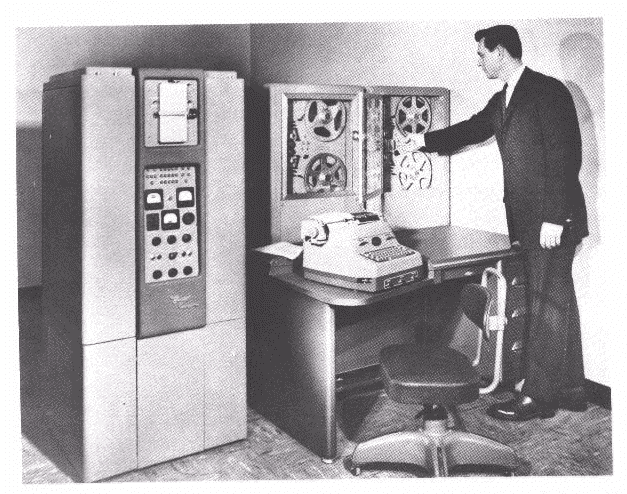
Third generation (1964-1974): Integrated Circuits.

Fourth generation (1974- Present): VLSI/ULSI.

Fifth generation (now and the future)
There are six categorize, based on size, capability, and price, of computers including Embedded computers, Mobile device/computers, Personal computers, Mid-range servers, Mainframes computer, and Supercomputers. So, i want to mention the meanings about the each categorize of computer. First, embedded computer is a miniature computer embedded into a specific product for a specific function. For example, washing machine is used by pressing any buttons, the user will get what s/he needs. Second, Mobile computer fits on our lap/hand, contains built-in computing or internet capabilities. Third, Personal computers are fully functioning portable or desktop computers, designed for a single user at a time. Fourth, Mid-range servers physically likes small cabinet, hosting data and programs available to a small group of users. Fifth, Mainframe computer consume large space and powerful computers used to host a large amount of data and programs available to a wide range of users. The last one, Supercomputer is extremely powerful computers used for complex computation and processing.
There are six categorize, based on size, capability, and price, of computers including Embedded computers, Mobile device/computers, Personal computers, Mid-range servers, Mainframes computer, and Supercomputers. So, i want to mention the meanings about the each categorize of computer. First, embedded computer is a miniature computer embedded into a specific product for a specific function. For example, washing machine is used by pressing any buttons, the user will get what s/he needs. Second, Mobile computer fits on our lap/hand, contains built-in computing or internet capabilities. Third, Personal computers are fully functioning portable or desktop computers, designed for a single user at a time. Fourth, Mid-range servers physically likes small cabinet, hosting data and programs available to a small group of users. Fifth, Mainframe computer consume large space and powerful computers used to host a large amount of data and programs available to a wide range of users. The last one, Supercomputer is extremely powerful computers used for complex computation and processing.
Session 2
Before, i write about Motherboard, i would like to describe what is System Unit. Generally, system unit is a case that contains electronic components (processor, memory, expansion cards etc) and most storage devices. Also, there are four main components of system unit such as processor, Memory module, Expansion cards including sound card, modem card, video card, and network interface card, and Ports and connectors. Whereas, motherboard, also called system board, is main circuit board in system unit and contains chips, integrated circuits, and transistors.
What is Central Processing Unit? It is derived from Memory + Processor. It acts as the brain, that takes all major decisions, makes all sorts of calculations and directs different parts of the computer functions by activating and controlling the operations, of any computer system. Moreover, there are two CPU components include Control Unit-CU, which is part of the hardware that is in charge, and Arithmetic Logic Unit-ALU, which performs arithmetic operation such as Addition, Subtraction, Multiplication, and Division. Also, Memory is divided into two types. First, RAM (Random Access Memory) can be edited data that being used by the processor and it loses its contents when we turn off computer. Whereas ROM (Read Only Memory) can be read only, but it doesn’t lose any its contents when we turn off computer.
What is Central Processing Unit? It is derived from Memory + Processor. It acts as the brain, that takes all major decisions, makes all sorts of calculations and directs different parts of the computer functions by activating and controlling the operations, of any computer system. Moreover, there are two CPU components include Control Unit-CU, which is part of the hardware that is in charge, and Arithmetic Logic Unit-ALU, which performs arithmetic operation such as Addition, Subtraction, Multiplication, and Division. Also, Memory is divided into two types. First, RAM (Random Access Memory) can be edited data that being used by the processor and it loses its contents when we turn off computer. Whereas ROM (Read Only Memory) can be read only, but it doesn’t lose any its contents when we turn off computer.
Session 3
In the session 3, i learnt the meaning of computer terms. Those terms are divided into two main parts include Input and Output. Input includes Keyboard, Pointing Devices, Game Controllers, Digital Cameras, Voice Input, Video Input, Optical Scanner, Optical Reader, Bar Code Readers, Magnetic Stripe Card Readers, Magnetic Ink Character Recognition, Bio metric Input, Terminals. One more part, Output includes Display Devices, Printers, Audio Output Device, Data Projector, Force Feedback and so on. Furthermore, i want to mention about Storage. It holds data, instructions, and information for future use. There are seven types of storage to be used. They are Hard disks, Flash Memory Storage, Optical Discs, Tape, Magnetic Stripe Cards and Smart Cards, Microfilm and Microfiche, and Enterprise Storage.
Subscribe to:
Posts (Atom)